Your guest page: RSVP, songs, and schedule
What guests see and do on your wedding microsite — RSVP, song requests, voting, and the day's schedule.
For: Couples and guests
Every couple gets a personal guest page — a mobile-friendly microsite that lives at a link you share with everyone on your list. No app to download, no account to create. Guests tap the link, and they're in.
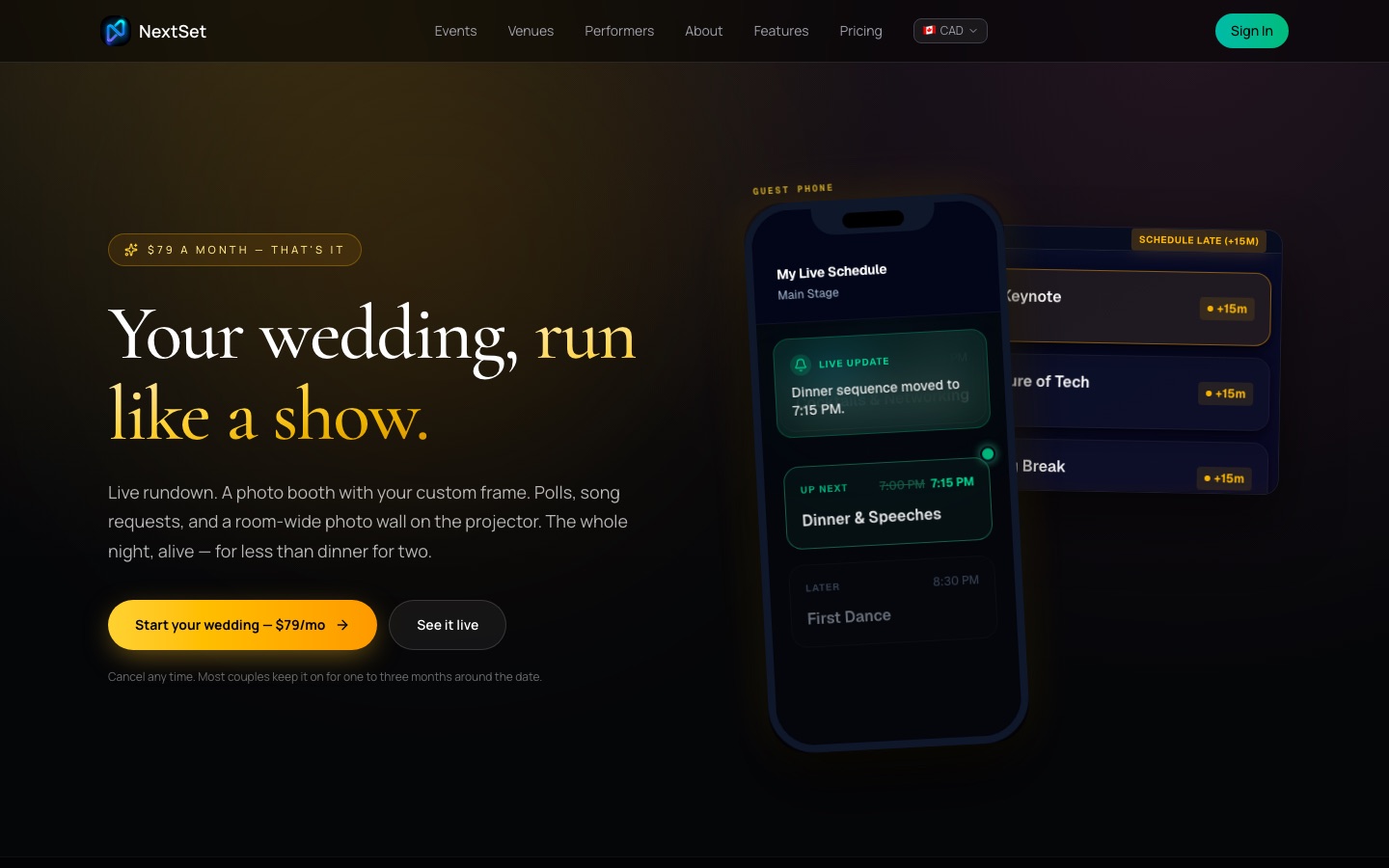
What guests see
When someone opens your guest link, they arrive at a welcome screen styled with your couple names and wedding date. From there, four tiles take them to everything they need:
| Tile | What it does |
|---|---|
| RSVP | Confirm attendance, bring a plus-one, and note any dietary needs |
| Photos | Upload pictures straight from their phone to your shared photo wall |
| Songs | Request a track — and vote up songs other guests have suggested |
| Schedule | Browse the day's timeline so they always know what's next |
Sharing the guest link
Your guest link looks like:
nextset.ca/event/[your-event-id]/guest
You'll find the exact URL in your wedding dashboard. Copy it and share it anywhere — your invitation card, a QR code on the welcome table, your wedding website, or a text to the group chat. You can use it as many times as you like; it never expires while your wedding page is active.
RSVP
Guests tap RSVP and fill in:
- Their name (required)
- Email or phone (optional — handy if you want to follow up)
- Whether they're attending
- A plus-one (if coming)
- Any dietary restrictions or allergies
- A song they'd love to dance to
Once they tap Send RSVP, they see a confirmation on screen and you'll see their reply in your dashboard under RSVPs. That's the whole flow — no account, no login.
Song requests and voting
The Songs section is a shared, live request list. Any guest can:
- Type a song title and (optionally) the artist, then tap Request this song
- Scroll down to see what other guests have already requested
- Tap the thumbs-up on any song to vote for it
Votes update immediately, so the list naturally sorts the crowd's favourites to the top. Your DJ or band will thank you. You can see the full request list in your dashboard at any time.
The schedule
The Schedule tile shows the day's timeline in order. Each item displays its time and a short label — Ceremony, Cocktail Hour, First Dance, Cake Cutting, and so on. If your wedding spans more than one day (rehearsal dinner, morning brunch), guests can switch between days with a single tap.
You set the schedule during your onboarding wizard, and your planner or coordinator can adjust it from the dashboard before and during the day.
Tips for a smooth guest experience
- Put the link on the invite. The earlier guests have it, the more RSVPs you'll collect before the catering deadline.
- Add a QR code to the venue. Print one on a table card or welcome sign so guests can scan it the moment they arrive. QR code generators are free and widely available.
- Check in on song requests the week before. The voting list gives you a real sense of what the crowd wants to hear — worth a conversation with your DJ.
Common problems
Guests can't find the link. Share the guest URL directly — the one from your wedding dashboard. Guests don't need to search for the wedding on NextSet; the link takes them straight there. A printed QR code on the welcome table means everyone has it in front of them on arrival.
RSVPs aren't showing up in the dashboard. Give it a moment after a guest submits, then refresh your dashboard. RSVPs are recorded as soon as the guest taps Send. If a guest says they submitted but you can't see their reply, ask them to check for an error message on their screen — a network blip can prevent the form from going through, and a second tap usually sorts it.
A guest says the link isn't working. Ask them to try opening it in their phone's default browser rather than a social-media in-app browser (some in-app browsers block certain features). The page works on all modern phones without installing anything.