Your profile and EPK
Build your public band profile and electronic press kit: bio, photos, links, and where fans find you.
For: Bands and performers
Your NextSet profile is your public face — the page fans see when they search for you, the card venues check before booking you, and the link you drop in your booking email. This article walks through filling it out completely so you make a strong first impression.
Getting to your profile settings
Sign in and go to your band dashboard. In the left sidebar you'll find three sections that make up your profile:
- Profile — bio, genre, location, logo, and cover image
- Photos & Media — press photos and video clips
- Links — streaming platforms and social accounts
Changes save separately in each section, so fill them out one at a time.
Step 1: Fill in your basic info
Go to Profile in the sidebar.
- Enter your band name exactly as you want it to appear publicly.
- Add a short tagline — one line that sums up what you sound like or who you are. Venues and fans read this first.
- Write your bio in the large text area. Tell your story: where you're from, what you play, what makes a show with you worth attending. A few paragraphs is plenty.
- Select your genre from the dropdown. This is how fans and venues filter the directory.
- Add your hometown and current city so local promoters can find you.
- Fill in year formed if you'd like it to show on your profile.
Click Save Changes when you're done. The button is in the top-right corner of the page and activates as soon as you make any change.
Your public profile URL
Just below the band name field you'll see your Band URL — something like nextset.ca/your-band-name. This is the permanent link to your public profile. Copy it with the button beside the field and use it anywhere: booking emails, social bios, show posters.
The slug is set from your band name when you first save. If you ever need it changed, contact support.
Step 2: Upload photos and media
Go to Photos & Media in the sidebar.
Your media library holds press photos and video clips that appear on your public profile.
Uploading files
- Click Upload in the top-right corner of the page.
- Select one or more files. Supported formats: JPG, PNG, GIF, MP4, MOV.
- The files appear in your grid as soon as the upload finishes.
You can also drag and drop files onto the upload area when your library is empty.
Setting a primary photo
One photo becomes your featured image — it leads your profile card in the artists directory. Hover over any photo and click the star icon to make it primary. The current primary photo is marked with a gold "Primary" badge.
Removing media
Hover a photo or video and click the trash icon to delete it. You'll be asked to confirm before anything is removed.
Step 3: Add your links
Go to Links in the sidebar.
This is where you connect your streaming presence. Add whichever platforms you're on:
- Website — your band's own site
- Instagram, Twitter/X, Facebook — enter your handle (without the @)
- YouTube — channel URL or username
- Spotify — artist ID or full URL
These links appear on your public profile so fans can follow you wherever they already listen.
Step 4: Upload your profile images
Back in Profile, scroll to the top of the page. There are two image slots:
- Cover image — the wide banner that runs across the top of your profile. Use a live photo, a key art image, or anything that sets the mood. Click the upload button in the top-right corner of the banner area.
- Logo / profile photo — the square image in the bottom-left of the banner. This is the image that appears on your profile card in the artists directory.
Both images upload immediately when you select a file.
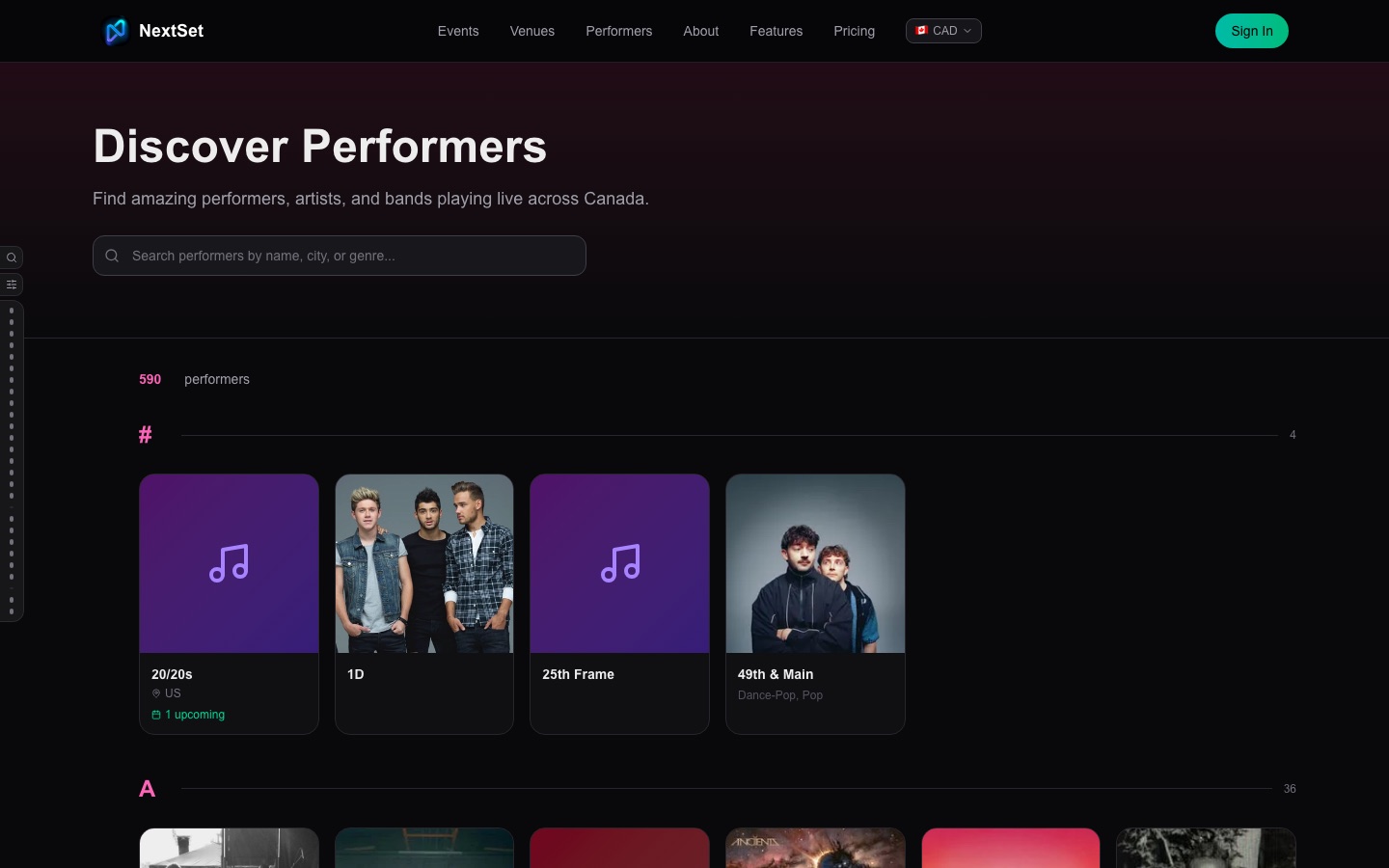
Where fans see your profile
Your completed profile shows up in two places:
- The artists directory at
nextset.ca/artists— a searchable, filterable list of all NextSet performers. Fans and venues browse here. - Event pages — when a venue adds you to their event rundown, your name and profile card link back to your public profile page.
The more complete your profile, the better you stand out in the directory.
Common problems
My cover image or logo isn't updating after I upload. The image is processed as soon as it uploads — give it a moment and then refresh the page. If the old image is still showing after a refresh, try clearing your browser cache and reloading.
The Save Changes button is greyed out. It only activates after you've made a change on that page. If you just loaded the page without editing anything, the button stays inactive. Make any edit and it will enable.
My band URL isn't what I expected. The URL is generated from your band name when you first save your profile. If it doesn't match what you want, contact support and we can update it for you.
I uploaded a photo but it doesn't appear as my profile image in the directory. Make sure you've set a primary photo in Photos & Media (the star icon), and that you've also uploaded a logo in the Profile section. The logo is the image that shows on directory cards; the primary photo from your media library appears on your full profile page.
My social links aren't showing up publicly. Make sure you clicked Save Changes in the Links section after adding them. Each section saves independently.