Claiming your venue listing
Find your venue in the NextSet directory and claim it, or register a brand-new one — and see what you unlock.
For: Venue owners
NextSet's public directory is automatically populated with venues discovered across Canada. If your venue is already listed, claiming it takes about a minute and immediately gives you a full venue dashboard. If it isn't listed yet, you can register it from scratch in the same flow.
Before you start
You need a NextSet account. If you don't have one yet, signing up is free — the claim flow will prompt you if you aren't signed in.
How to claim an existing listing
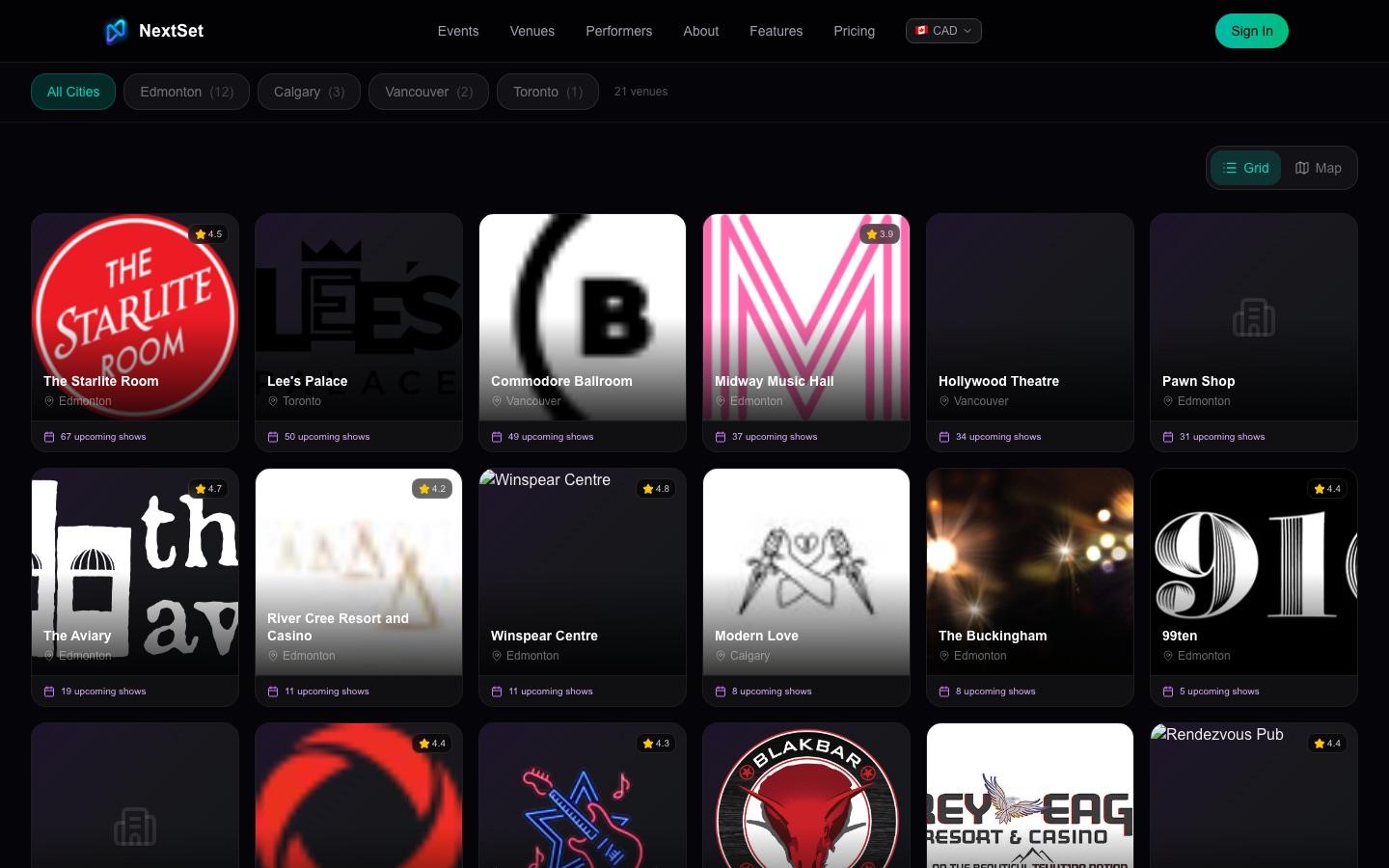
- Go to nextset.ca/venues and find your venue. You can filter by city to narrow things down.
- Open the venue's page and click Claim This Venue.
- If you aren't signed in, you'll be taken to the login page first. Sign in or create an account, then you'll be brought back automatically.
- On the claim page, choose Find My Venue (this is the default tab).
- Type your venue name in the search box. Matching results appear as you type.
- Click your venue in the results. Venues that are already claimed by someone else are greyed out — see the Common problems section below if that happens.
- Review the selected venue and click Claim This Venue.
- Your claim is submitted for review. NextSet will notify you once it's verified. Until then, your listing is visible to the public but you won't have full edit access.
How to register a brand-new venue
If your venue isn't in the directory at all, you can add it directly.
- Go to nextset.ca/claim/venue (or click Claim This Venue on any venue page and then sign in).
- Switch to the Register New Venue tab.
- Fill in your venue name and city (required), plus any of the optional fields: address, capacity, website, and a short description.
- Click Register Venue.
- Your venue is created immediately and you're taken to your venue dashboard to finish setting up.
If you started typing a name in "Find My Venue" and nothing came up, there's a shortcut: click Register a new venue instead → and the name you typed is carried across automatically.
What claiming unlocks
Once your venue is active, you get access to the full venue dashboard:
- Events — create and manage your shows, rundowns, RSVPs, and set lists
- Live show controls — run the timer, projector displays, and audience interactions during an event
- Staff and stages — add team members with the right permissions
- Public profile — edit your venue's description, images, and contact info
- Ticketing — sell tickets with QR-code check-in built in
- Finances — track revenue and see your event history
- Fan engagement — enable song requests, polls, and photo walls at your shows
Your venue also gets a public page at nextset.ca/your-venue-name that fans can find and follow.
Common problems
Your venue is already in the directory but you can't select it. It may have already been claimed by someone else. The listing will show a grey "Claimed" badge. If you believe this is an error — for example, a previous owner or a duplicate listing — contact NextSet support at nextset.ca/support and include your venue name and city. Don't create a duplicate listing; reach out and we'll sort it out.
You submitted a claim but haven't heard back. Claims go through a short verification step to confirm ownership. Check your email (including your spam folder) for a message from NextSet. If it's been more than a few business days, contact support.
Your new venue registered fine but you were sent to an onboarding flow instead of the dashboard. That's normal — the onboarding flow is the first step of your venue dashboard. Complete the short setup (profile photo, address, and type of venue) and you'll land in the full dashboard.
You searched for your venue and it doesn't appear. The directory is populated over time and your venue may not have been discovered yet. Switch to Register New Venue, fill in your details, and you'll be set up right away.
You have two accounts and the wrong one claimed the venue. Sign in to the correct account, visit your venue's public page, and attempt to claim it again. If it's already showing as claimed (because another of your accounts did it), contact support — they can reassign ownership.