NextSet for martial arts dojos
How coaches use NextSet to run live rounds, manage pairings, display a mat-side timer, and sign athletes in with a QR code.
For: Coaches, dojo owners
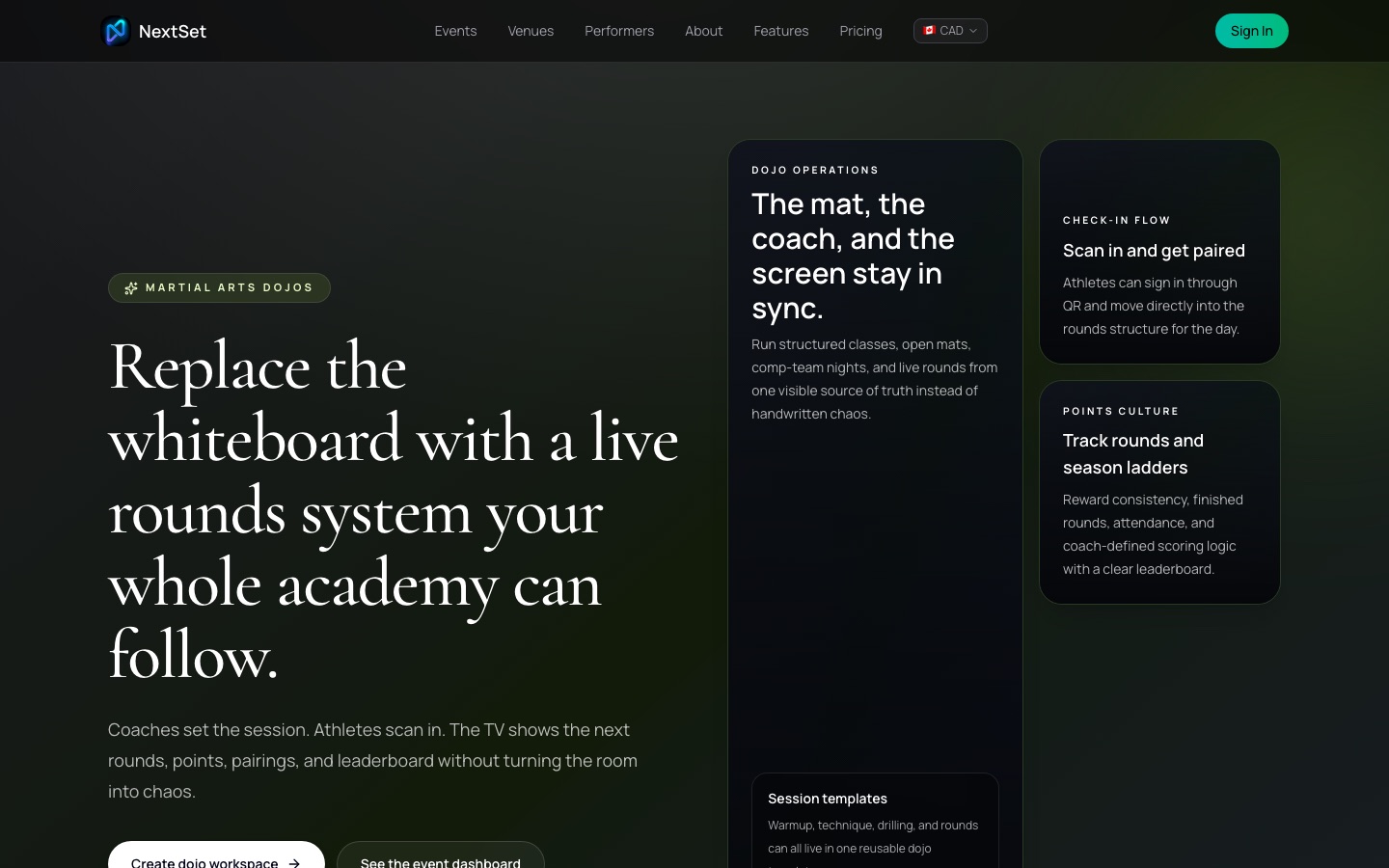
NextSet gives martial arts dojos a live digital operating system for training nights — QR sign-in, round structure, pairing display, and a mat-side countdown on any TV or projector, without the whiteboard.
The problem NextSet solves
A training night involves a lot of moving parts: who showed up, who pairs with whom, how long each round is, and which pair is on deck. Tracking all of that with a whiteboard and a stopwatch means someone is constantly running back and forth to update it — and half the room still missed the update.
NextSet puts one visible source of truth on the screen. Athletes scan in, the coach sets the round structure, and the TV handles the rest.
Getting set up
- Go to nextset.ca/dojos and click Create dojo workspace.
- Fill in your academy profile — name, coaches, and the class schedule you run.
- Build a session template: map out warmup, technique, drilling, and rounds as separate blocks. You only do this once, then reuse it every training night.
- Create an event for your next session using that template.
Once the event is live, athletes can sign in from their phones using the QR code you put on the wall or display on the projector.
Running a live session
Sign athletes in with QR
When athletes arrive, they scan the session QR code on their phone. That puts them in the room's active roster for the night. No paper, no clipboard, no calling names.
Set up round pairings
With the sign-in list populated, you choose how to pair the room:
- Random pairing — NextSet shuffles the signed-in athletes into pairs automatically.
- Heat-style — athletes are grouped into heats and cycle through in order.
- Coach-managed — you assign pairings manually, round by round.
Once pairings are set, the TV display updates to show the next round and who is on deck.
The mat-side display
The projector or TV in your gym shows the round timer counting down, the current pairings, and who is up next. Athletes and coaches can see the screen from the mats — no one needs to shout across the room to know what's happening.
The timer and the display update live on their own. You control everything from the coach view on your phone or laptop; the screen follows automatically.
Tracking points and a leaderboard
NextSet lets coaches define their own point rules — for finished rounds, attendance, or other academy-specific criteria. Points accumulate over the season and feed a leaderboard that you can show in the room. This is how dojos build a training culture where consistency gets rewarded publicly, not just at competition.
Session templates
A session template is the reusable skeleton of a training night. Build it once:
| Block | Example duration |
|---|---|
| Warmup | 10 min |
| Technique | 20 min |
| Drilling | 15 min |
| Live rounds (3×5 min) | 20 min |
| Cool-down | 5 min |
Every time you create a new session event, you apply the template and the structure is ready to go. Change durations event by event if you need to — the template stays intact for next time.
Connecting to competition prep
NextSet is designed to complement tools like SmoothComp for external competition brackets, not replace them. Use your in-dojo rounds data to track athlete progress and prep the comp team, then continue using the dedicated competition platform when tournament day arrives. The two work alongside each other.
Common problems
How does QR sign-in work? When you open the session for check-in, NextSet generates a QR code tied to that event. Display it on a screen or print it and tape it to the wall. Athletes open the camera on their phone, scan, and they're added to the active roster. No app download is needed to check in.
Can I track season points and show a leaderboard? Yes. You define what earns points (finished rounds, attendance, coach award, etc.) and NextSet accumulates them across sessions. The leaderboard is visible in the mat-side display so athletes can see where they stand without waiting for the end-of-term spreadsheet.
Does it replace the whiteboard for pairings? That's exactly the goal. Once athletes are signed in, pairings show on the TV automatically — current pair, next pair, and round timer all on one screen. The whiteboard becomes optional. Most coaches keep it as a backup for the first couple of sessions, then stop using it when they trust the screen.
The timer isn't showing on the projector.
Check that the projector or TV is open to the correct display link for your event. The URL looks like nextset.ca/<your-dojo>/<event>/projector. If you've loaded the right page and the timer still isn't moving, make sure you've pressed Start in the coach controls — the display mirrors exactly what the director has started.
An athlete scanned in but doesn't appear in the pairing list. Give it a second — sign-ins update live. If they still don't appear, ask them to scan again; the first scan may not have gone through on a slow connection. You can also add them manually from the coach view before running pairings.