Fan Pro: creating your own events
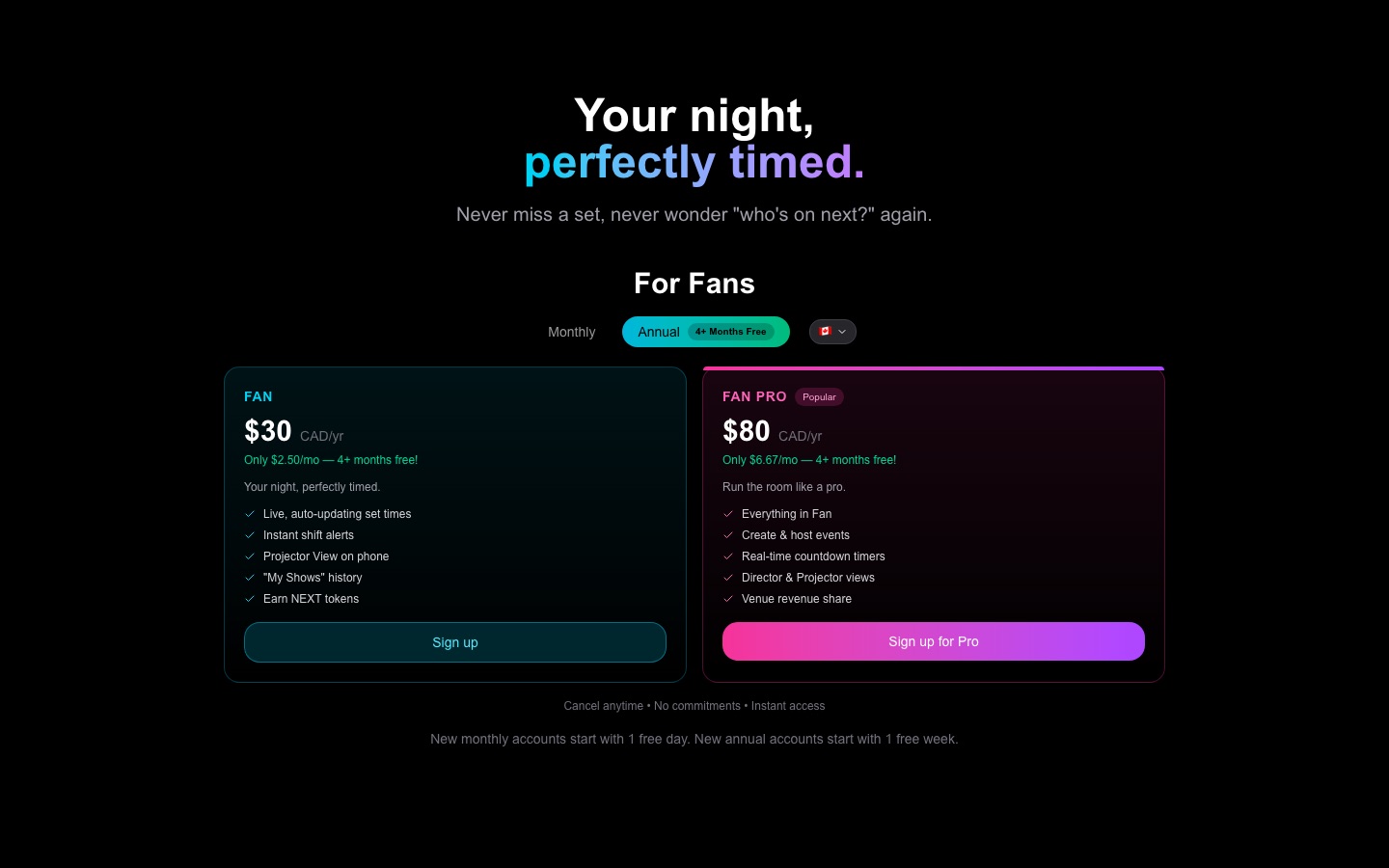
Create and run private events as a Fan Pro subscriber — no venue required.
For: Fan Pro subscribers
Fan Pro lets you host your own events — house concerts, listening parties, pop-ups, private jams — without being connected to a venue. You get the full NextSet toolkit: a live countdown timer, a projector display, a backstage monitor, and a director console to run everything from your phone or laptop.
What you get with Fan Pro events
Your events are private by default. Guests enter using a PIN or a QR code you share with them — they don't need a NextSet account. You also get four views you can open on any screen or hand off to a helper:
| View | What it shows | Who uses it |
|---|---|---|
| Director | Controls: start/stop timer, advance the rundown, switch modes | You (the host) |
| Projector | Countdown, current performer, event name | The room screen or TV |
| Backstage | What's coming up next | Performers in the wings |
| Onstage | A simplified display for the stage | The performer currently on |
The projector and other views update live on their own — you don't need to do anything special to keep them in sync.
Creating an event
- Log in and go to your Fan dashboard.
- In the left sidebar, open My Events (this section only appears when Fan Pro is active).
- Click Create Event.
- Fill in the event name, date, start time, and location. A description is optional.
- Click Create — your event is ready immediately.
Once created, your event card shows four quick-launch buttons: Director, Projector, Backstage, and Manage. The Manage link takes you into the full event dashboard where you can add performers, build a rundown, and adjust timer settings.
Sharing the projector with a screen operator
You don't have to run the projector screen yourself. Every Fan Pro event has a private projector link you can share — it includes a PIN so only people you give it to can open it.
To find your share links:
- Go to My Events in your fan dashboard.
- Find your event card. Below the quick-launch buttons there is a Private Guest Access panel.
- There you'll see:
- A PIN (6-digit code your screen operator types in)
- A QR code guests can scan to enter the event
- Copy buttons for the individual view URLs: Projector, Backstage, Onstage, and Key (a fallback entry page)
Send the Projector URL or PIN to whoever is running the screen — they open the link on the TV or monitor, and it stays in sync with the director automatically.
Running your event
When it's time to go live:
- Open the Director view from your event card (or open
nextset.ca/<event-slug>/directorin a browser tab). - Use the director controls to start the timer, move through your rundown, and switch between modes like Set, Changeover, and Intermission.
- The projector and all other views update within a second or two of every action — no refresh needed.
Your performers list and rundown are managed in the event's Manage view. Add performers before the show, set their time slots, and drag to reorder. Once the show starts, the Next button in Director advances through the rundown automatically.
What Fan Pro events can and can't do
| Feature | Fan Pro events | Venue events |
|---|---|---|
| Live timer and projector | Yes | Yes |
| Director console | Yes | Yes |
| Backstage and onstage views | Yes | Yes |
| Private PIN access for guests | Yes | No |
| Public listing on nextset.ca | No | Yes |
| Ticketing | No | Yes |
| Multi-stage | No | Yes |
Fan Pro events are intended for private gatherings. If you need a publicly listed event with ticketing, you'd need a venue account.
Common problems
The "My Events" section isn't visible in my sidebar. This section only appears for active Fan Pro subscribers. If you don't see it, your Fan Pro plan may not be active — go to Account → Billing to check and reactivate if needed.
When I log in, I'm sent straight to a billing page. This means your Fan Pro subscription needs attention (expired, payment failed, or cancelled). The billing page will show you the current status. Once your subscription is active again you'll be able to reach My Events and all other Fan Pro features.
My projector link isn't working for guests. Make sure you're sharing the full private link that includes the PIN, or share the PIN separately so guests can enter it manually. The plain event URL (without the PIN) is access-controlled and won't open for guests who aren't signed in.
The projector view isn't updating. Check the internet connection on the screen device. If it briefly lost signal, it reconnects and catches up on its own — or a page reload brings it back immediately. Confirm you've actually started the timer in the Director view; screens won't count down until you press Start.
I created an event but can't find the Director link. Go to My Events, find your event card, and click the teal Director button. You can also navigate directly to nextset.ca/<your-event-slug>/director.