Creating an event
How to create a new event, set the basics, make it public, and open the rundown editor.
For: Venue owners and staff
By the end of this article you'll have a new event saved, know where it appears publicly, and be ready to build out your rundown.
Where to start
Sign in, then go to your venue dashboard. In the left sidebar, click Events, then hit the Create Event button near the top right. This opens a six-step wizard — you can move back and forward freely, and everything saves at the end.
Step 1: Event details
This is the only step with required fields.
- Event Name — what your audience sees. It also generates your event's URL automatically (for example,
nextset.ca/your-venue/yuletide-bonanza-9). You can tweak the URL slug if you want something shorter. - Event Date and Show Time — when the show starts. These appear on your public event page and drive the timer.
- Advanced Timing (optional) — tap "Show Advanced Timing" to set a separate doors-open time and a behind-the-scenes rundown start time (useful for load-in and sound check).
- Public Visibility — set a publish date and time if you want the event to go live at a specific moment. Leave this blank to keep the event as a private draft until you're ready.
- Repeating Event — toggle this on if the event recurs. Choose weekly, biweekly, monthly, or other patterns and select the days. NextSet will auto-generate future instances from this template.
Step 2: Stage selection
If your venue has multiple stages defined, pick which ones this event uses. Each stage gets its own timer and projector. If you haven't set up stages yet, NextSet creates a default one — you can add more later under Venue Settings → Stages.
Step 3: Theme and style
Pick an event type (Concert, Open Mic, Music Festival, Speaking Event, Competition, or Heat Draw). Your choice sets sensible defaults for timing and the director layout — you can still adjust everything in the next step.
You can also upload an event logo (shown on the projector and public page) and a background image for your projector displays, and choose your primary and secondary colours.
Step 4: Timing settings
These control the timer during your show:
| Setting | What it does |
|---|---|
| Default Set Length | How long each performer's slot is (minutes) |
| Changeover Time | Gap between performers while the stage resets |
| Intermission Length | Duration of any scheduled breaks |
| End Warning | A percentage-based buffer — when a set reaches this percentage of overtime, the director sees a reminder |
If you chose a competition or heat-draw type in Step 3, you'll also see heat count and draw countdown options here.
Step 5: Performers
Add your lineup now, or skip this step and add performers later from the rundown editor. For each performer you can enter a name, a photo or logo, set length in minutes, and optional notes. Drag to reorder.
Skipping this step is fine — the rundown editor (see below) is where most venues do the detailed lineup work.
Step 6: Configuration
A 4-digit director PIN is generated automatically when you save. Share it with your stage manager so they can access the director controls on the night.
You can also choose whether the projector URL is publicly accessible or private.
When you're happy, click Create Event. NextSet saves everything and takes you straight to the event dashboard.
Where your event appears publicly
Your event gets its own public page at:
nextset.ca/your-venue/your-event-slug
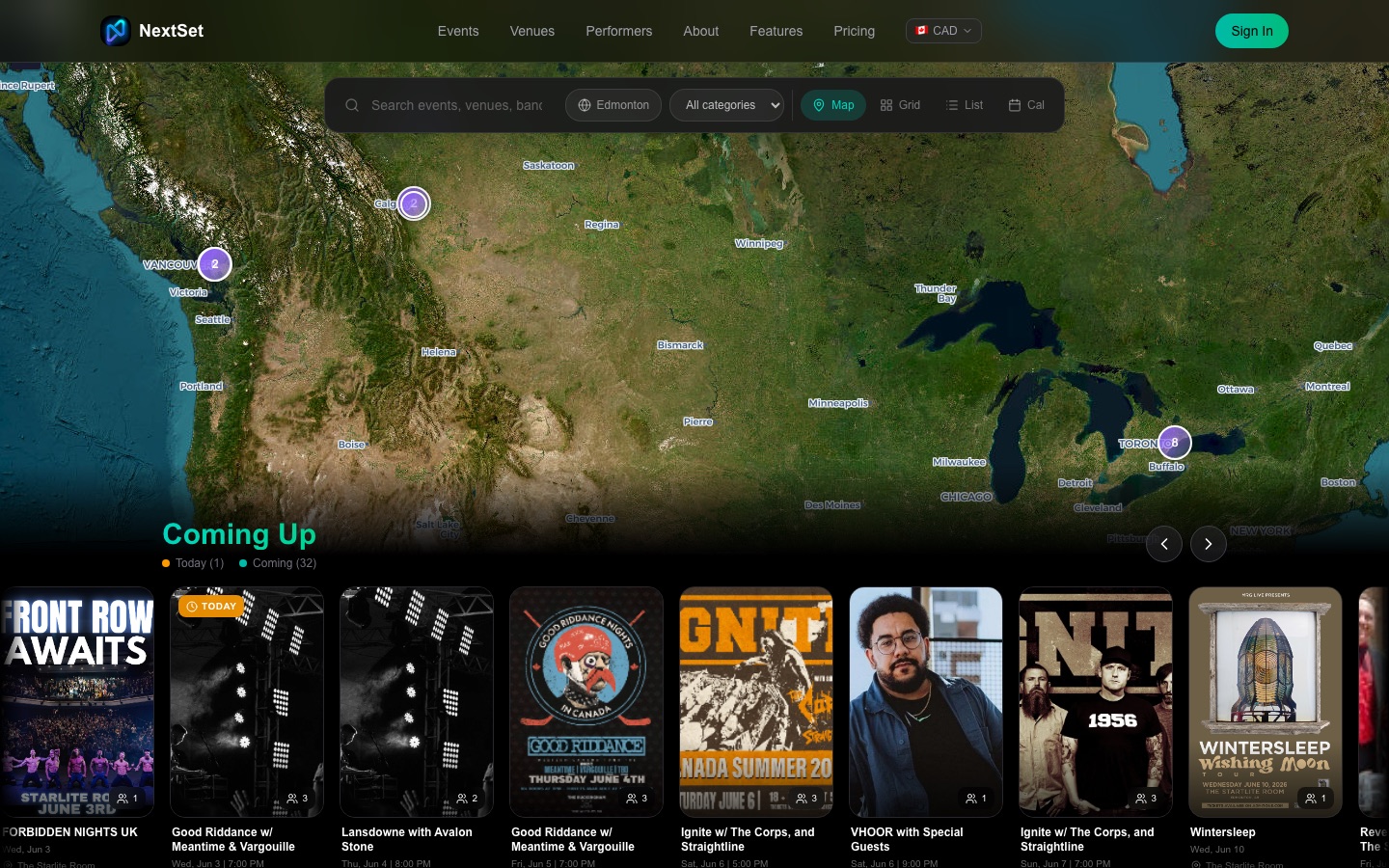
This page shows the event name, date and time, venue, and performer lineup. It goes live on the publish date you set in Step 1. If you left the publish date blank, the event stays hidden until you update its status from the event dashboard.
Opening the rundown editor
The rundown editor is where you build the minute-by-minute schedule, add and reorder performers, set individual set lengths, and insert intermissions or custom items.
After creating your event, you'll land on the event dashboard. From there, find the event in Dashboard → Events, click on the event, then open Rundown from the sub-navigation. The rundown editor shows every item in order and lets you drag, edit, and time each one.
You can also reach a specific event's rundown directly at:
/dashboard/venue/events/<event-id>/rundown
Common problems
I can't find where to add performers or build the schedule. Performers and the detailed schedule live in the rundown editor, not the event creation wizard. Go to Dashboard → Events, click your event, and select Rundown from the tabs. From there you can add performers, set individual durations, and insert breaks.
My event isn't showing up on the public page. Check the event's publish status. If you left the publish date blank during setup, the event is in draft mode and only visible to you. Open the event from your dashboard and set a publish date or change the status to publish it immediately. Also check that your venue profile itself is set to public under Venue Settings.
The event URL slug I want is already taken. Slugs must be unique within your venue. Try adding a year or edition number — open-mic-june or showcase-2026 are both clean options. You can edit the slug in Step 1 at any time before the event is published.
I set the wrong show time. Go to Dashboard → Events, click the event to open it, and edit the details. Changes to the date and time appear on the public page immediately.